
Designed and developed by
Rakib Hasan
Built MantisIDE: the notebook, the Full IDE, the firmware flasher, the whiteboard and the classroom tools.
github.com/TheZeroHzMantisIDE is a free MicroPython notebook. Plug in an ESP32 or Pico, run a cell, and the board answers under your code. Nothing to install.
Chrome or Edge on a computer. Try it free; sign up to save notebooks and whiteboards online.
200+ official boards. If MicroPython runs on it, MantisIDE can program it.
Find your board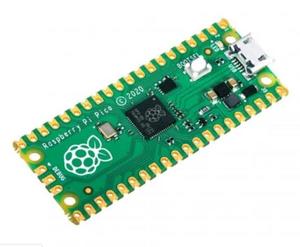 PicoRaspberry Pi
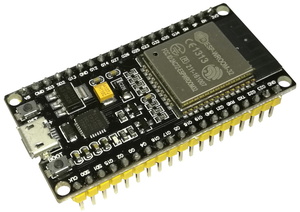 ESP32 DevKitCEspressif
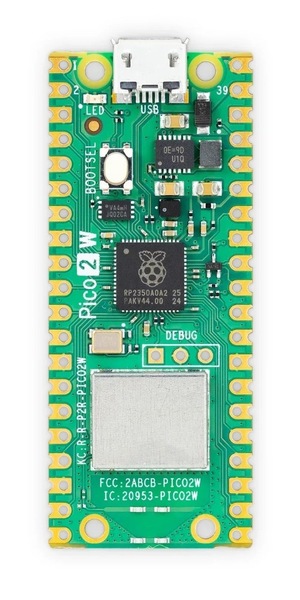 Pico 2 WRaspberry Pi
 ESP32-S3 DevKitEspressif
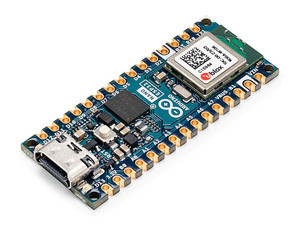 Nano ESP32Arduino
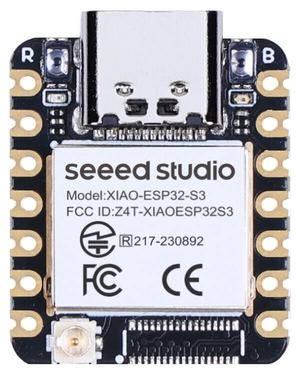 XIAO ESP32S3Seeed Studio
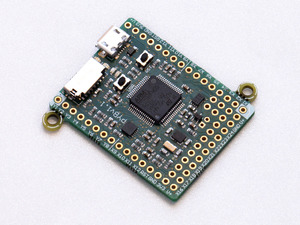 Pyboard v1.1George Robotics
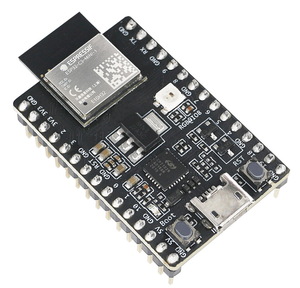 ESP32-C3 DevKitEspressif
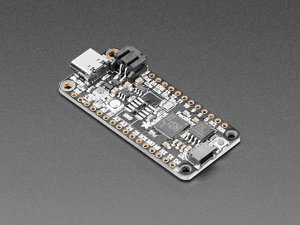 Feather RP2040Adafruit
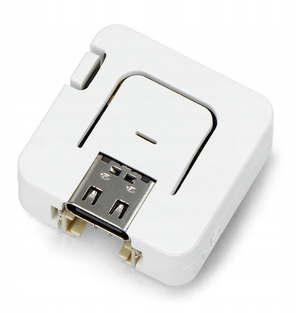 AtomS3 LiteM5Stack
 Pico WRaspberry Pi
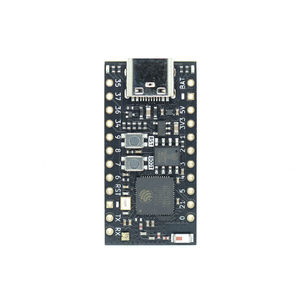 TinyS3Unexpected Maker
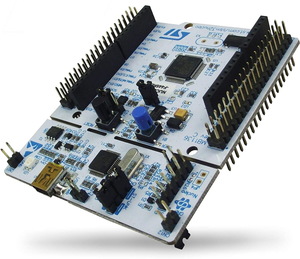 Nucleo F446RESTMicroelectronics
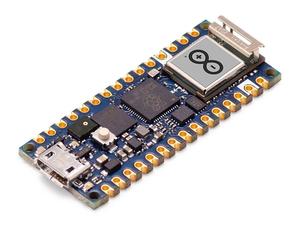 Nano RP2040 ConnectArduino
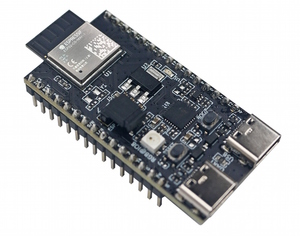 ESP32-C6 DevKitEspressif
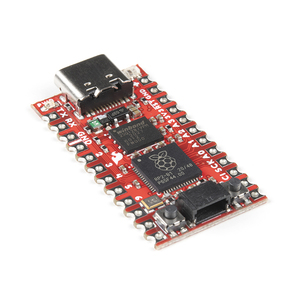 Pro Micro RP2040SparkFun
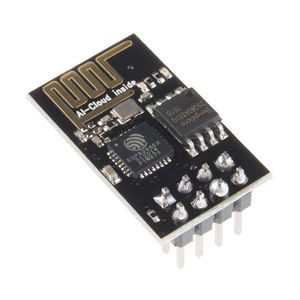 ESP8266Espressif
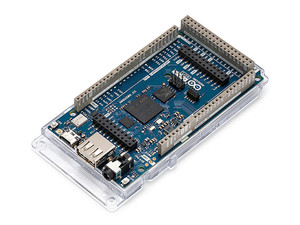 Giga R1Arduino
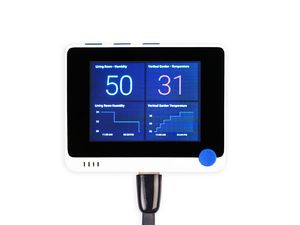 Wio TerminalSeeed Studio
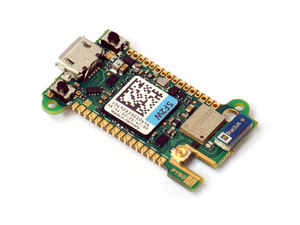 Pyboard DGeorge Robotics
New: Screen Designer
Drop widgets onto the display, paint the text gold, switch on a glow. The designer writes plain LVGL MicroPython as you work, and Live on board puts every change on the real screen in about a tenth of a second.
These are the real MantisIDE pages running fixed demos. Pick one to watch it work.
You need a computer with Chrome or Edge, a USB cable and a board. The board’s own LED is enough to start.
Find your board in the flasher and install official firmware. Skip this if it already has MicroPython.
Click Connect device and pick the USB port, or connect over Wi-Fi with WebREPL.
Type Python in a cell and press Shift+Enter. The board runs it and prints back.
Keep it in your account, share a link, or turn it in to your class.
When code needs a diagram, open a whiteboard in the same Projects home. Draw wiring, label pins, and share the board with your class or team.
A serial terminal, a file uploader, a package manager, a firmware tool, cloud whiteboards and a place to keep your work, together.
Run code a piece at a time. Variables stay on the board between cells, and input() works.
Web Serial over a cable, or WebREPL over Wi-Fi. Stop, restart or reset the board from the toolbar.
Free memory, flash space and CPU speed, plus a file browser for the board and your computer.
The Full IDE opens .py files from the board or your computer in tabs, runs them, and sets one to run at boot.
Official MicroPython for 200+ boards. ESP chips flash in the browser; Pico and other UF2 boards take one drag.
Drivers for displays, sensors and networking from micropython-lib and MantisIDE, copied to /lib for you.
Notebooks save in your browser, in your account, or as standard .ipynb files you can open anywhere.
Search, select and delete notebooks and boards together. Shared work shows up in the same place.
Keep it private, share a link, or publish it on Explore. Invite people to view or edit.
Draw plans and diagrams in the browser. They save to your Projects list next to notebooks and open from any computer.
Copy someone’s notebook, improve it, and send the changes back. History lets you undo anything.
A team gets a chat and shared notebooks. A class gets assignments, turn-ins and grades, and can attach a notebook or whiteboard to the stream.
Create a class and give students its code. Post an assignment with a starter notebook, and each student gets their own copy to work in, on their own board.
Who makes MantisIDE.
Designed and developed by
Built MantisIDE: the notebook, the Full IDE, the firmware flasher, the whiteboard and the classroom tools.
github.com/TheZeroHzFunded by
TheZeroHZ funds the development of MantisIDE.
Open the notebook in Chrome or Edge, plug in your board and run your first cell. It takes about a minute.